Features
Features are a group of services that allow a bank customer to perform activities related to managing their various accounts. These features can be personal finance management, bill payments, funds transfer and so on. A set of actions are grouped under each feature for a better classification of services that are being offered by a financial institution.
Use the feature to view all the banking features with the Bank/Credit Union and Limit Groups.
Menu path: Master Data Management > Features
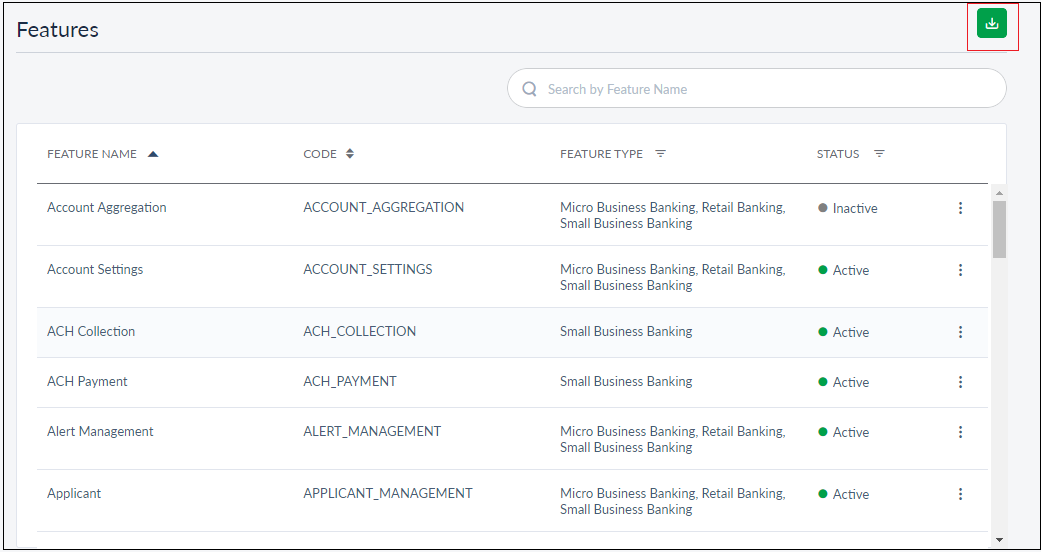
The application displays the list of features as rows with the following details:
- Feature Name: Name of the feature (account/card).
- Code: It is the unique identifier of a feature
- Feature Type: Category of the feature.
- Status: Status of the product (Active/Inactive).
Click any feature to view further details.
All the details listed here are fetched from the back-end system, and the CSR can view only the listed information. Sort the list based on any of the columns by using the sort icon (
 denotes sorted by that column). You can also filter
 the list by Feature Type and Status (active or inactive). Using the download icon on the top right of the page, the CSR can download the list of features along with the details in an excel file.
Search
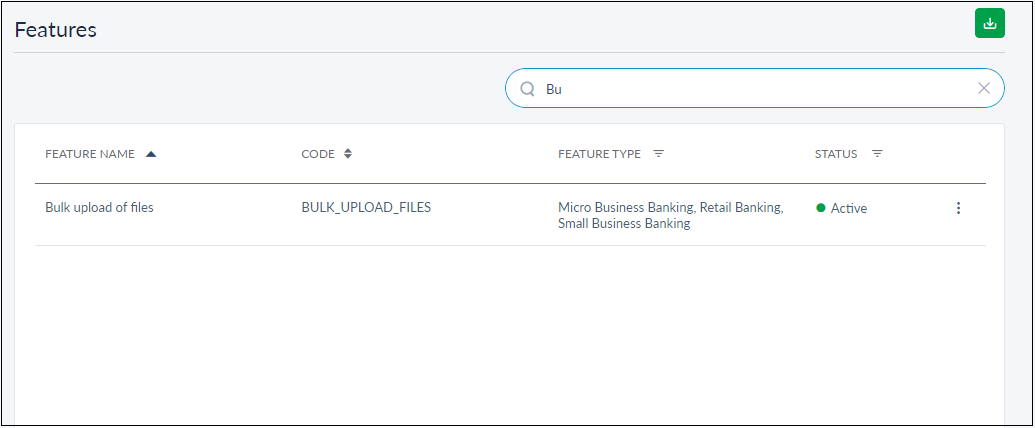
CSR can search for the required feature using the Search button. Enter the product code or name in Search. The application will display the list of features matching the search criteria.
Contextual Menu
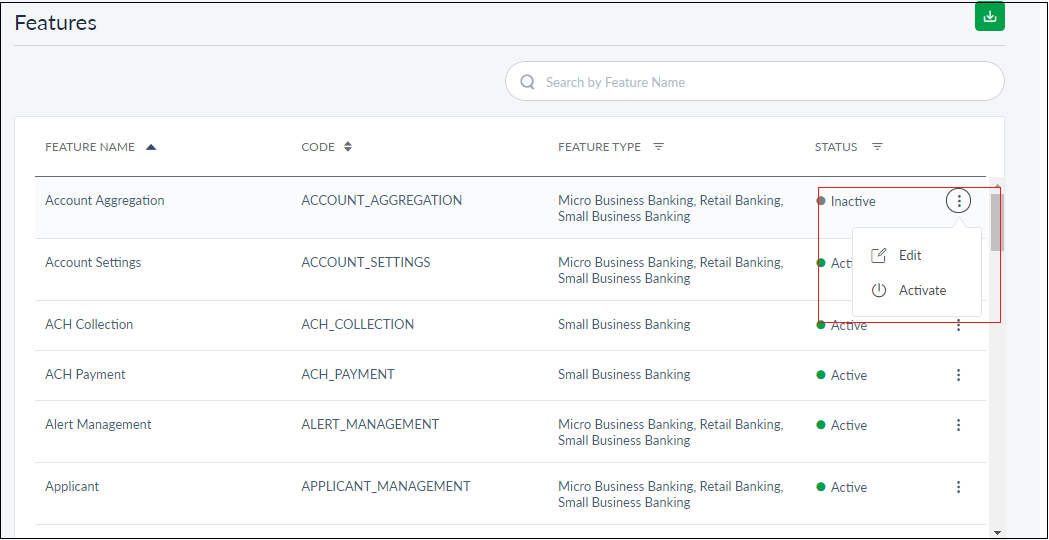
The contextual menu shown against each feature lets the user to Edit and Activate/Deactivate (depending on the feature status). It will also be shown on the feature details page.
View Feature Details
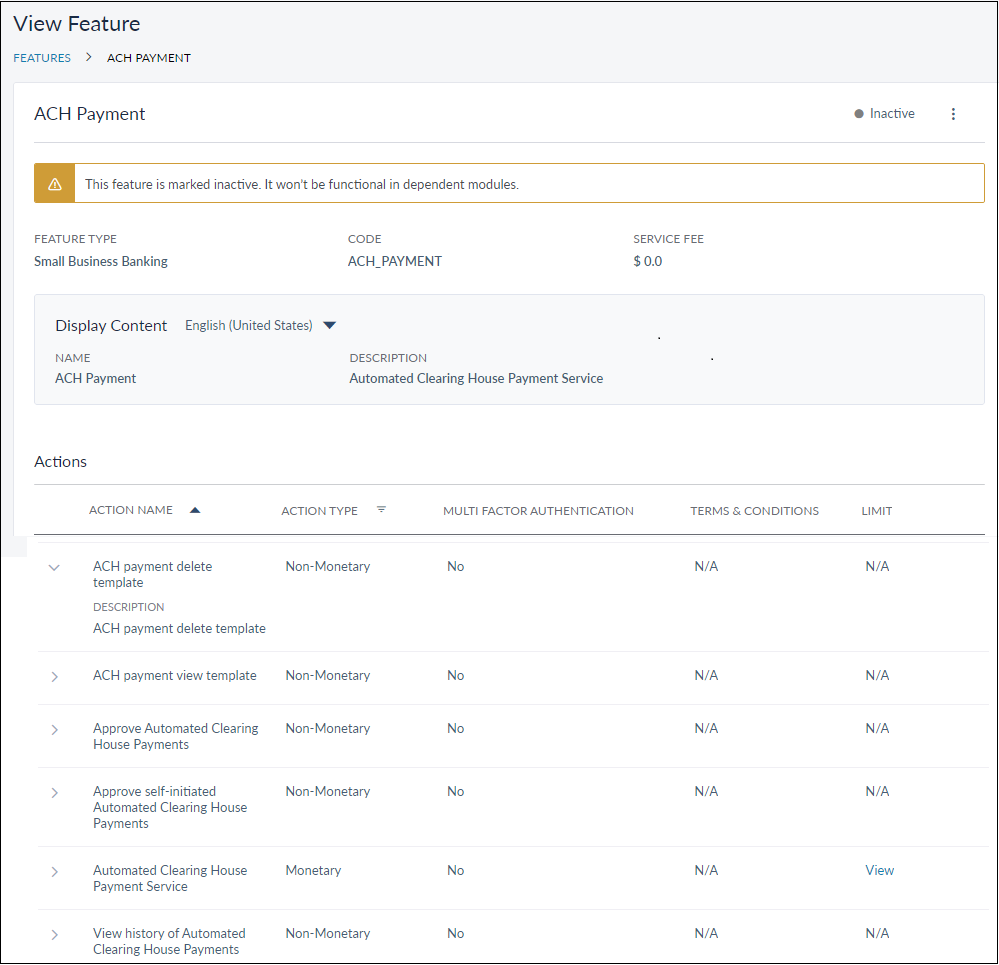
Click the required row to view the respective feature details. You can view the following details about any feature:
- Feature Code
- Feature Type
- Service Fee
- Display Content - Any description applicable to the respective feature. From the drop-down, you can select the required language in which you want to view the content.
- Status of the feature
The Action section displays the list of actions associated with the feature with the following details:
- Display Name - Name of the action.
- Action Code - Displays the action code.
- Action Type - Displays whether the action is related to Retail Banking or Business Banking
- Action Category - Displays whether the action is monetary or non-monetary.
- Limit Group - If the action is monetary, then it displays the limit group to which the action.
- Status - Displays whether the action is active or deactivated.
You can filter the list using Action Type (Retail Banking or Business Banking) and Action Category (Monetary or Non-Monetary) columns.
If a deactivated feature is selected for viewing the details, a message will be shown mentioning the same as shown.
Edit Feature
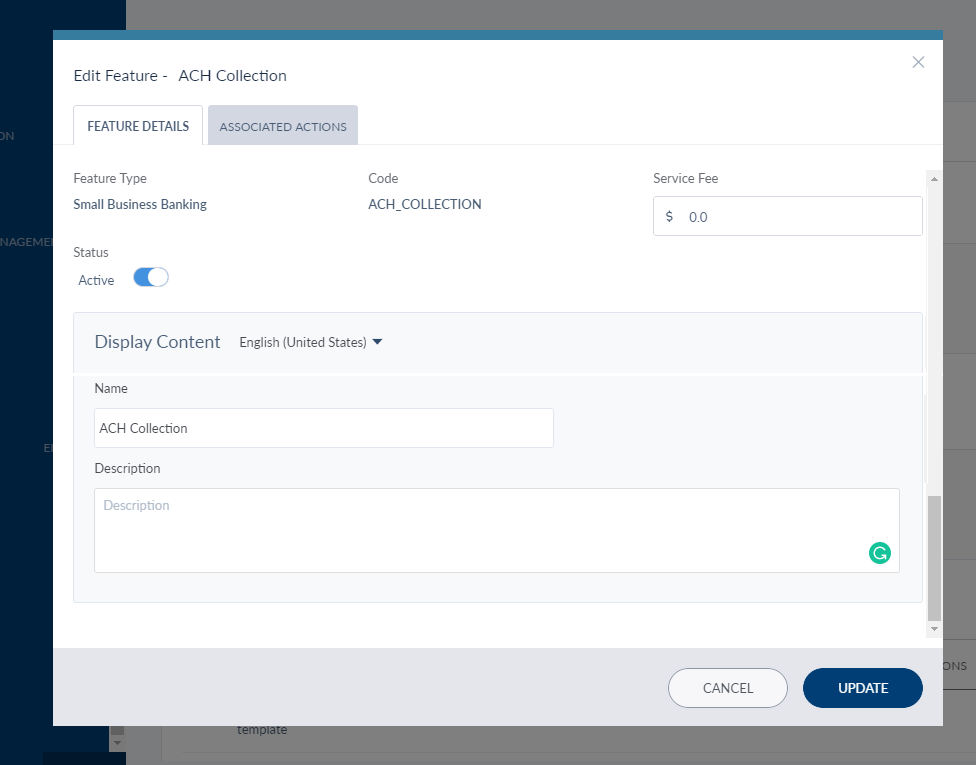
To edit a feature, click the Edit option from the contextual menu shown against each feature on the feature list page or from the feature details page. The edit feature pop-up window has two tabs - Feature Details and Associated Actions.
Edit Feature Details
The following fields can be modified on the Feature Details tab:
- Status - Toggle it to activate or deactivate the feature
- Service fee: Mention a numerical figure.
- Description: Modify the description of the feature. The maximum words allowed are 100. A description for a feature is mandatory and cannot be left empty.
The other details - Feature Type, Code, and Name cannot be edited.
Edit Associated Actions
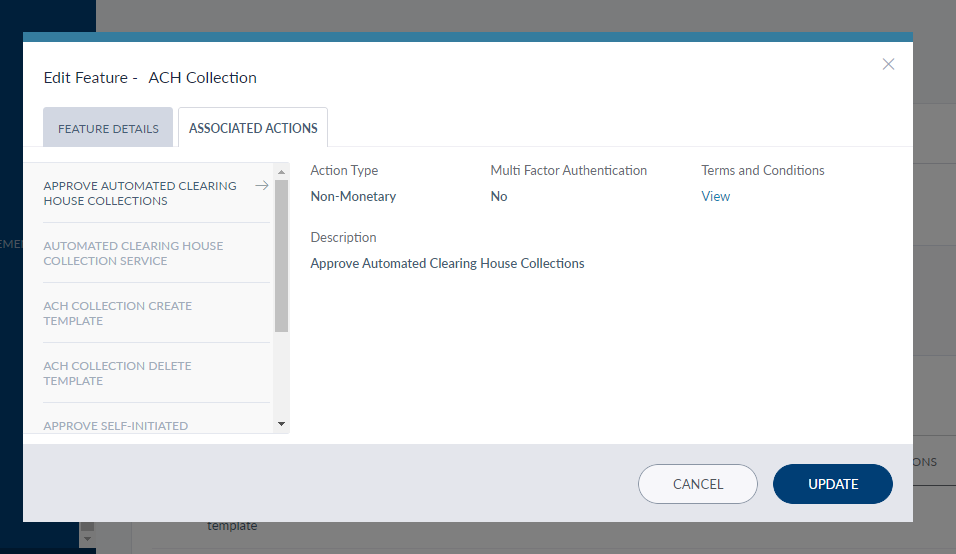
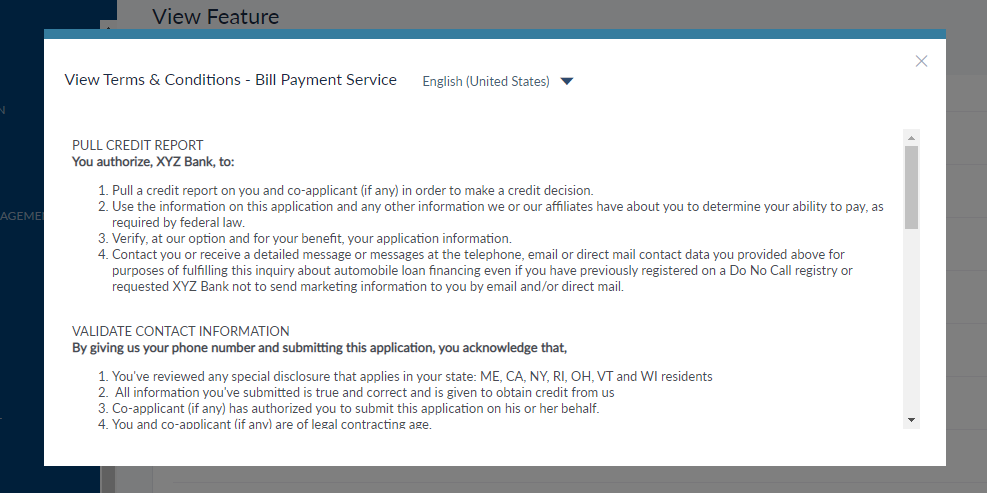
The user can edit the actions categorized under the selected feature from the Associated Actions tab. The actions mapped to the feature are listed on the extreme left of the edit pop-up window. For the Non-monetary action, the user can only view the terms and conditions by clicking the View button. The terms and conditions can be viewed in multiple languages, if defined, from the drop-down menu.
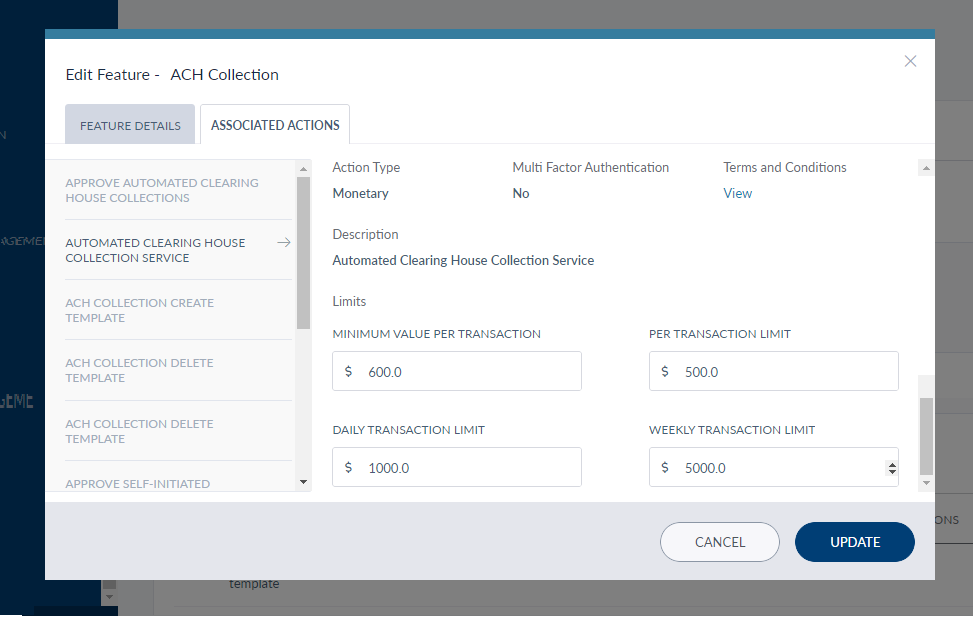
For the Monetary actions, the user can define transaction limits for:
- Minimum value per transaction
- Per transaction limit
- Daily transaction limit
- Weekly transaction limit
The user can also view the terms and conditions for the action similar to the non-monetary transaction actions.
Deactivate/Activate Feature
To activate or deactivate a feature, click Active/Deactivate option from the contextual menu. The feature status - Active or Deactivate - will be shown based on its current status. The user can edit a feature even if it deactivated.
Limit Group
Click Limit Group to view the limit groups. You can view the following details:
- Name of the Limit group
- Description
- Limit group code
Click the edit symbol if you want to update the name of the limit group or its description.
In this topic
